Yes, you need a vector logo for professional printing. Supply an AI, EPS, SVG, or vector PDF file, never a JPEG or PNG. If you’re unsure what you’ve got, check the file extension first, then ask your designer for the master vector file before you send anything to production.
TL;DR:
- Only supply vector files like AI, EPS, SVG, or PDF for professional printing to avoid pixelation and ensure clean enlargement across all products.
- Vector artwork maintains crisp edges when scaled, unlike raster images that blur or pixelate at larger sizes, especially on signage and apparel.
- Certain print methods, including screen printing, embroidery, vinyl cutting, and large-format banners, require true vector files for accurate and efficient production.
- If the original vector file is unavailable, a redraw or automated vectorization can create a clean master, but it requires careful review and possible manual editing.
- Always check that your logos are genuine vectors by examining file extensions, zooming in beyond 400%, and testing selectability in design software before submitting to printers.
Table of Contents
- Why you need a vector logo for printing, not a raster file
- Vector versus raster: which to use for each print job
- File formats to send: AI, EPS, SVG, and PDF
- How do you check if a logo file is truly vector?
- How to get a vector logo if you don’t have one
- Pre-press checklist for a print-ready vector logo
- Practical intake and production tips from Chilli Promotions
- Why the vector master deserves a permanent home
- Get your artwork print-ready with Chilli Promotions
- Sources
- FAQ
Why you need a vector logo for printing, not a raster file
Vector artwork is built from mathematical paths, points, and curves rather than a grid of coloured pixels. That’s the entire reason it prints cleanly at any size, from a pen barrel to a pull-up banner, according to Adobe’s comparison of the two formats. Raster files (JPEG, PNG, most screenshots) store a fixed number of pixels, so stretching them past their native resolution creates blur, jagged edges, and visible pixelation on physical output.
This is why printers and promotional suppliers push back on raster logos so often. A logo that looks sharp on a website at 200 pixels wide can turn to mush the moment it’s scaled up for a banner or embroidered onto a polo shirt. Sending raster files is one of the most common causes of production delays and pixelation issues reported by print shops working with customer-supplied artwork.
The practical problems this causes:
- Jagged or blurry edges once a logo is enlarged for signage or apparel
- Colour banding or muddy detail in fine lettering and thin logo strokes
- Production stalls while a printer waits on a redraw or a corrected file
- Inconsistent logo quality across different merchandise runs
Vector versus raster: which to use for each print job
Some print methods simply won’t work without vector artwork. Others tolerate raster elements, but only in specific parts of the design.
Vector is essential for:
- Screen printing — clean vector paths let the separation process cut accurate stencils for each ink colour
- Embroidery — digitising software reads vector paths to plot stitch lines; fuzzy raster edges produce messy stitching
- Cut vinyl and signage — vinyl cutters and large-format printers trace vector outlines directly
- Large-format banners and pull-up displays — vector scales without the resolution loss raster suffers at metre-wide sizes
Raster can stay if it’s a photographic image embedded inside a larger vector-based layout, according to guidance on matching file type to print application. A staff photo on an event banner, for example, is fine as raster, provided it’s captured at a suitable resolution and the logo and text around it remain vector. The rule of thumb: if it’s a shape, a mark, or type, it should be vector; if it’s a photograph, raster is acceptable within its own space.
File formats to send: AI, EPS, SVG, and PDF
Printers generally accept four vector formats, and each has its place in a typical design workflow.
- AI (Adobe Illustrator) is the native, fully editable master file. It’s the gold standard for future edits and colour separations.
- EPS is an older, widely compatible vector format many printers and embroidery digitisers still request specifically because it works reliably across older software.
- SVG suits web use and digital handoffs, and most modern design tools export it cleanly, though some print software handles it less predictably than AI or EPS.
- Vector PDF is often the safest all-round option: it opens on almost any machine and, when exported correctly, keeps every path editable.
GoDaddy’s design guidance recommends keeping one of these as a permanent master file rather than relying on whatever version happens to be lying around. Watch for a trap here: not every PDF or AI file is genuinely vector. Some are just raster images wrapped in a vector file extension, which defeats the purpose entirely. Where possible, send an AI or EPS master alongside a vector PDF, so the printer has options if one format doesn’t suit their workflow.
How do you check if a logo file is truly vector?
- Look at the extension first. AI, EPS, SVG, and PDF are the vector candidates. JPEG, PNG, GIF, and BMP are always raster, no exceptions.
- Zoom in past 400%. A genuine vector logo stays crisp at any zoom level. If edges blur or pixelate, you’re looking at a raster image, even if it’s sitting inside a PDF wrapper.
- Open it in Illustrator or a PDF viewer and try to select a path or a letter. If you can click and edit individual points, or select text as text rather than a flat image, it’s vector.
- If none of that checks out, go back to whoever designed the logo and ask for the master file. Most designers keep the original AI or EPS on hand, even years after a project wraps.
How to get a vector logo if you don’t have one
The fastest, cleanest fix is always the original designer. Ask specifically: “Could you send the master vector file, AI or EPS, for the logo?” That phrasing avoids ambiguity, because a designer might otherwise send a high-resolution PNG thinking that solves the problem.
If the original designer is unreachable or no longer trading, you’ve got two remaining paths:
- Commission a redraw. A designer rebuilds the logo as clean vector paths by eye. This suits detailed or hand-lettered logos where accuracy matters, and it typically costs a modest flat fee for a simple mark.
- Use automated vectorisation. Tools like Adobe Illustrator’s Image Trace can convert a raster logo to vector paths automatically. It works reasonably well on simple, high-contrast shapes, but complex logos with fine detail or gradients usually need manual clean-up afterwards, a limitation confirmed by testing of automated vectorisation workflows.
Pro Tip: Send the designer your printer’s exact format request rather than a generic “I need a vector file” message. Naming the format (AI, EPS, or PDF/X-1a) up front avoids a second round trip when the first file they send isn’t what your printer actually needs.
Redraws generally take a few business days depending on complexity. Once you have the master file, store it somewhere permanent, not buried in an old email thread.
Pre-press checklist for a print-ready vector logo
Before any file goes to a printer, run through this list. It’s the difference between a smooth job and a frustrating round of email attachments.
- Convert all text to outlines. This locks the typeface in place so the printer isn’t relying on having the exact same font installed.
- Set the correct colour mode. Use CMYK for full-colour digital or offset printing, or specify exact Pantone spot colours for screen printing and merchandise where colour consistency matters. Our guide to colour in branded products covers how colour choice interacts with different print methods.
- Flatten or manage transparency according to the printer’s specifications, since some print processes handle layered transparency poorly.
- Include bleed and trim marks so nothing critical gets clipped during cutting.
- Export in a print-standard format — PDF/X-1a is the safest universal choice, alongside EPS or an AI file saved with PDF compatibility enabled.
- Check for stray points, unclosed paths, and incorrect overprint settings before sending the final file.
Skipping any one of these is a common cause of reprints and schedule blowouts. Print-prep guides consistently flag converting text to outlines and using standard export formats as the single biggest lever for avoiding rework, because font substitution and colour mismatches account for a large share of production delays across the industry.
Practical intake and production tips from Chilli Promotions
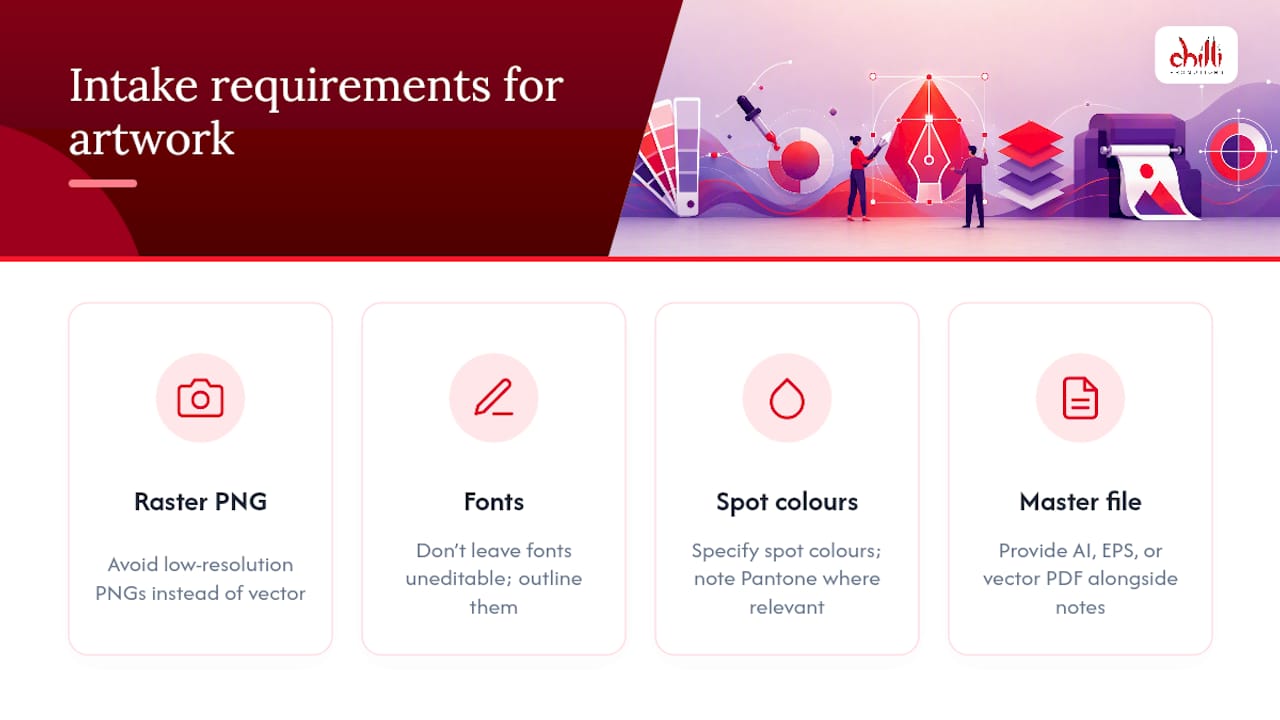
Most artwork issues we see at intake come down to the same handful of problems: a low-resolution PNG sent instead of a vector file, fonts left uneditable rather than outlined, or a spot colour never actually specified. To keep a job moving, we ask for an AI, EPS, or vector PDF alongside a note on Pantone colours where relevant.
When a client only has a raster logo, we handle the redraw in-house rather than bouncing the job back and forth, and we send a proof for approval before anything goes to production. It’s a small step that saves real time once you’re running a full merchandise order across multiple print methods.
Why the vector master deserves a permanent home
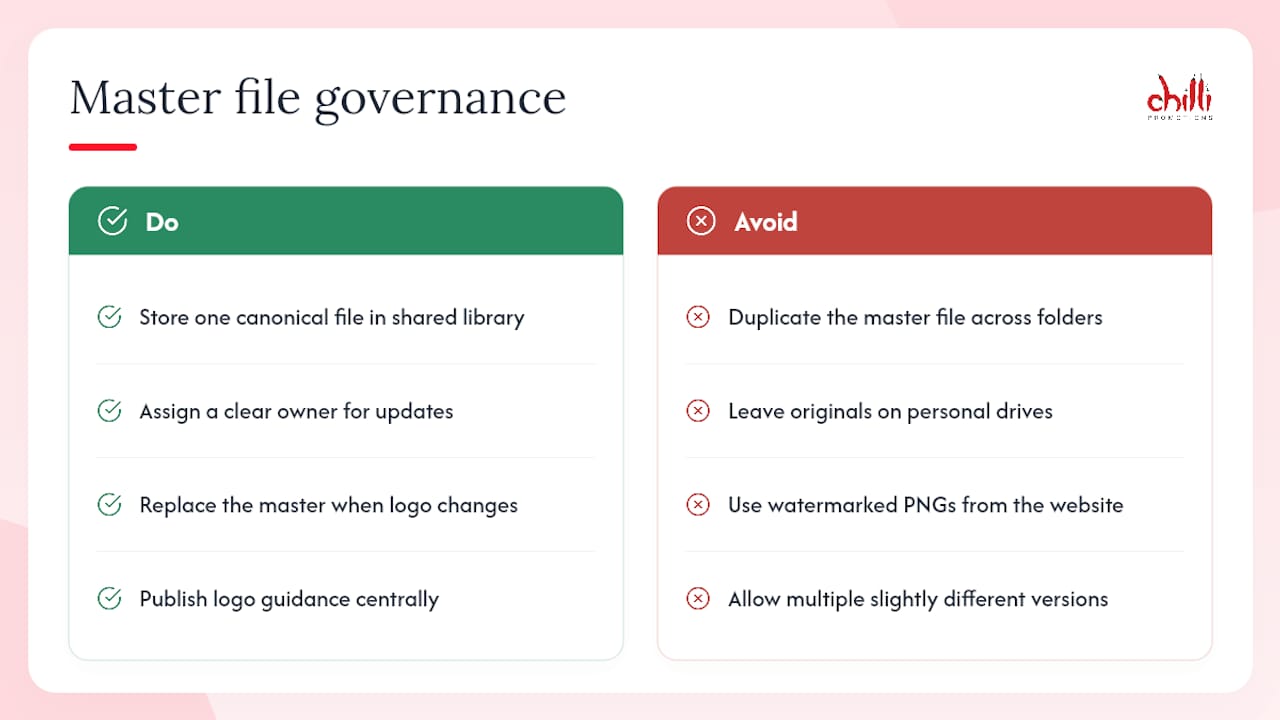
The biggest failure I see isn’t a lack of design skill, it’s poor file governance. Businesses redesign a website, change agencies, or lose a hard drive, and suddenly nobody can find the original logo file. Years later, someone’s stretching a watermarked PNG pulled off the company’s own homepage.
Treat the vector master the same way you’d treat a domain registration: one canonical file, stored in a shared brand asset library, with a clear owner responsible for updates. Every time the logo changes, even slightly, that master gets replaced, not duplicated. Guidance on logo usage and brand consistency makes the same point from a branding angle: consistency depends on everyone pulling from the same source, not five slightly different versions floating around different departments.
— Allissar Tawadros
Get your artwork print-ready with Chilli Promotions
Chilli Promotions is the alternative to chasing a freelance designer for a file fix. Send us what you’ve got, even a low-resolution logo, and our team checks it against the print method you need, redraws it in-house if it isn’t true vector, and sends a proof before anything goes to production.
There’s no long wait for this either. Once we have your logo and a sense of the products you’re after, from drink bottles to apparel to tech accessories, we can typically turn around an artwork check and quote within a couple of business days. If you’re planning a full merchandise run, our range of corporate giveaway ideas is a good starting point for scoping the order. Head to our promotional products catalogue to send your logo through and get the print job moving.
Sources
For deeper technical detail, Adobe’s raster versus vector comparison explains the underlying file structure, while Pronto Reprographics and Campbell Identification both offer practical, print-shop-level file checks worth bookmarking.
- Raster vs vector comparison | Adobe
- Logo vector guidance | GoDaddy Resources
- What Is a Vector File — and Why Do Print Shops Love Them? – Pronto Reprographics
FAQ
How can I create a vector logo?
Design it directly in vector software like Adobe Illustrator, or convert an existing raster logo using automated tracing tools, followed by manual clean-up for anything with fine detail or complex shapes.
Where can I find free vector logos?
Stock libraries offer free vector graphics and icons, but always verify the file is genuinely editable vector artwork before using it for a real print job, since quality varies widely between sources.
Can you print vector images?
Yes, vector images are the preferred format for most professional printing, including screen printing, embroidery, and large-format signage, because they scale to any size without losing sharpness.
How do I make a logo a vector file?
Ask the original designer for the master AI or EPS file first.